Interface description of system.
1.The list on the left is a function list. The system will show usable function according to users' permissions.
2. The page on the right will show corresponding information of function according to function selection of users on the left.
3. The page on the top right will show company/book and user's name that are currently in the process. 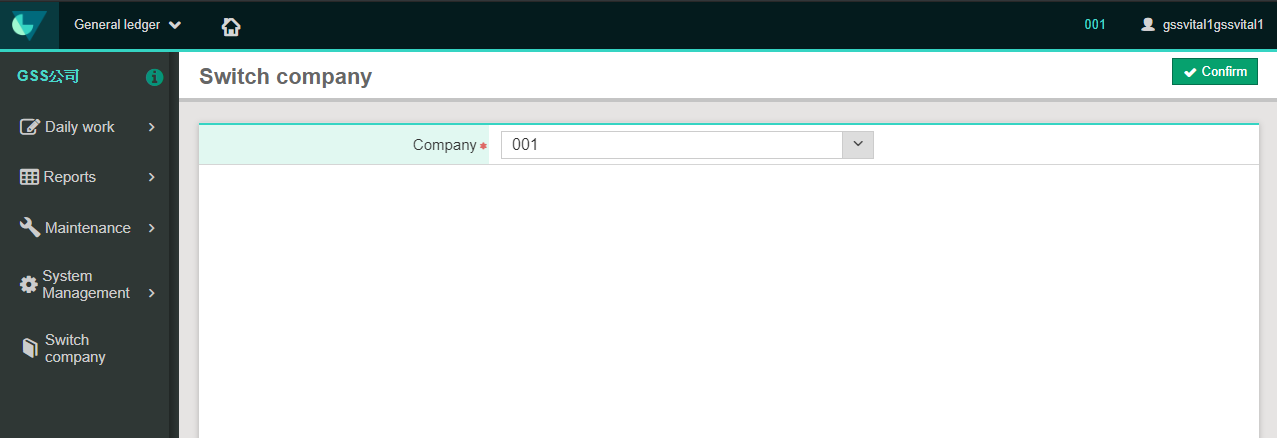
Description of start tour
1. GL website
Vital General Ledeger:https://www.gsscloud.com/en/vital/gl
2. Get started!
Have you applied for trial? If you haven't, you coud go to Vital family website to apply for trial!
Website:https://www.gsscloud.com/en/vital/gl
3. Sign in
Applicants, turn on Internet, please. We are going to the system.
Operation description:
(1) Open the browser and input the website address.
(2) After inputting your Email and password, please click [Sign in]
4. Set up
(1) Initial setting
(2) Daily work
(3) Daily report
(4) Authorizer information
If you just enter the system, please input company information here.
(5) Company setting
There's a default company(Vital), please modify it to the one you would like to cope up with.
If you would like to handle accounting of multiple companies, you are able to use [Add] function to add other companys' information.
(6) Parameter setting
Please note the company/booke you are handling on the top right.
Every company/book needs to set up parameter respectively.
(7) Currency setting
Please note the company/booke you are handling on the top right.
Every company/book needs to set up currency respectively.
(8) Third grade/ Account
Please note the company/booke you are handling on the top right.
Every company/book needs to set up account respectively.
(9) After finishing following setting, you are able to input voucher information...
來源連結:
https://vital-faq.azurewebsites.net/Finance/1215