1. Non-administrators, you can click [Import Functions > Import Notes] to enter the note import page.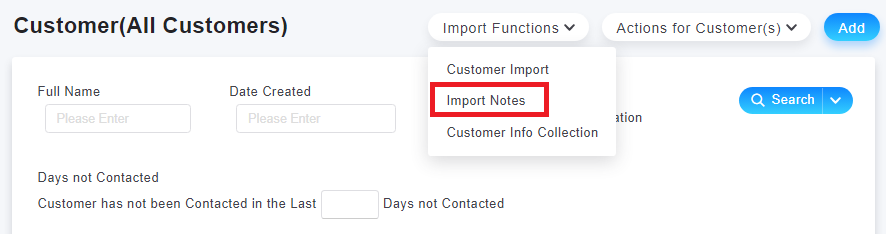
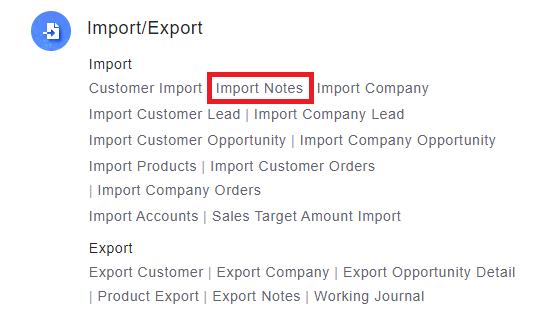
For System Administrators, you can go to [Settings > Import/Export [Import Notes]].
2. Click [Obtain empty template file], and input data according to fields. Note that the fields cannot be deleted.
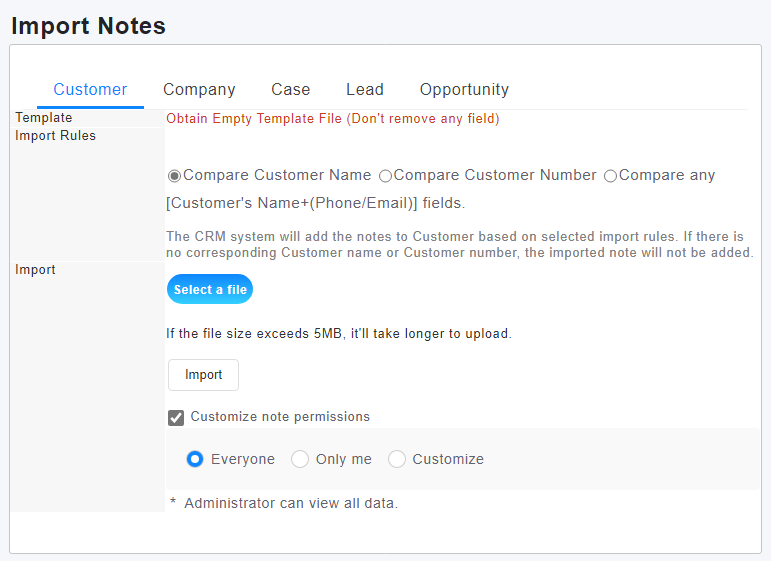
3. Set [Import Rules] before uploading the files. You can also tick [Customize note Permissions] at the bottom to set permissions.
4. After confirming the datas, you can import your file.
*If you have set a note category, please separate it with a semicolon ";" in the template (as shown below).

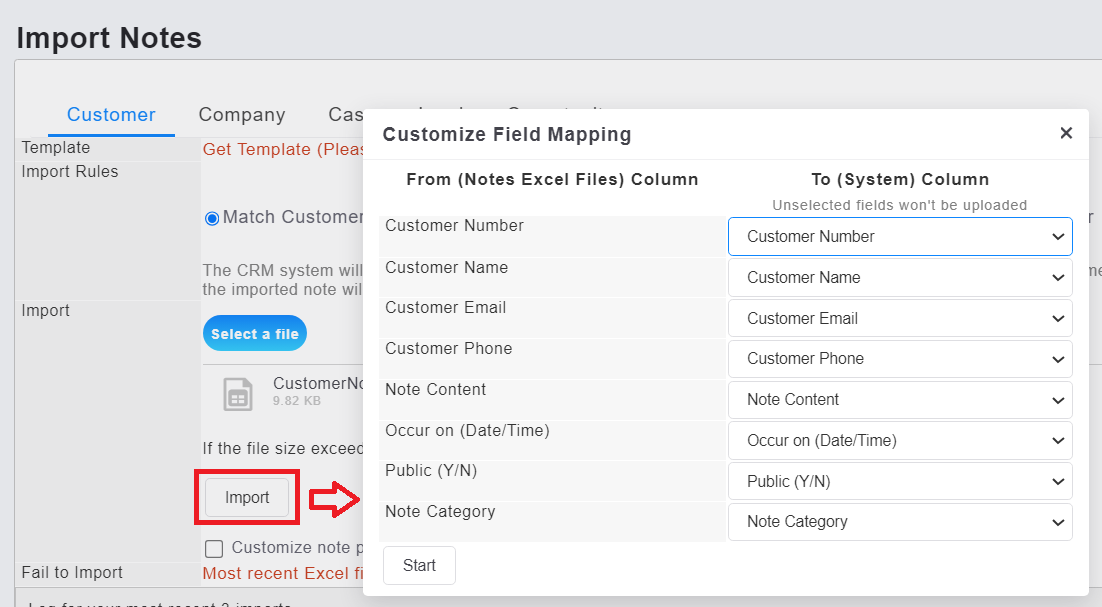
*If the fields are not original fields of the template, the function of field corresponding will automatically show after clicking [Import]. After choosing the correct fields, the system will more accurately compare the fields. If the data are input based on template field, please recheck if corresponding fields are correct.
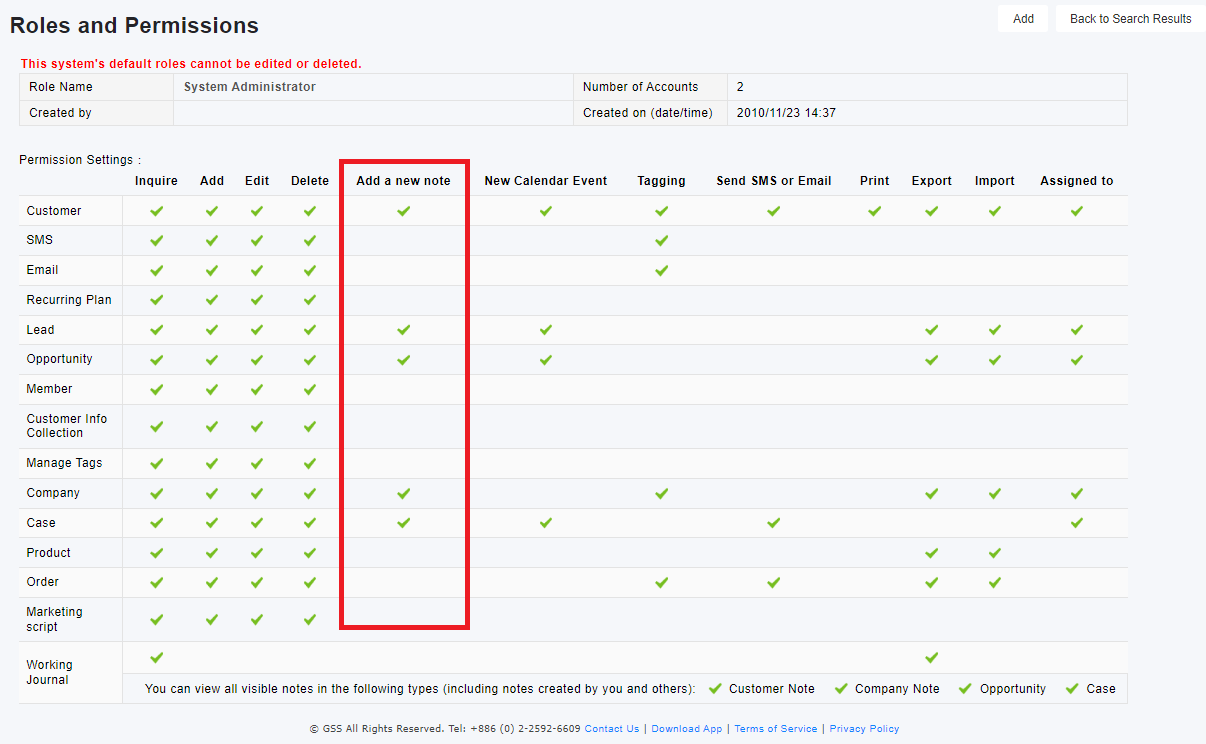
*The user must have the permissions to add and import notes for customer.
來源連結: