目錄
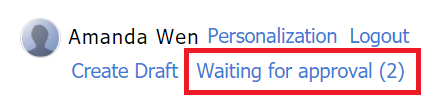
1. Select [Waiting for approval] in the top right corner. The number inside the parenthesis is the number of documents waiting for approval.
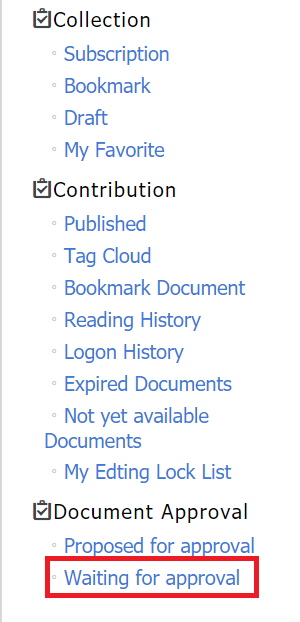 3. The documents waiting for approval are listed below. Click [View].

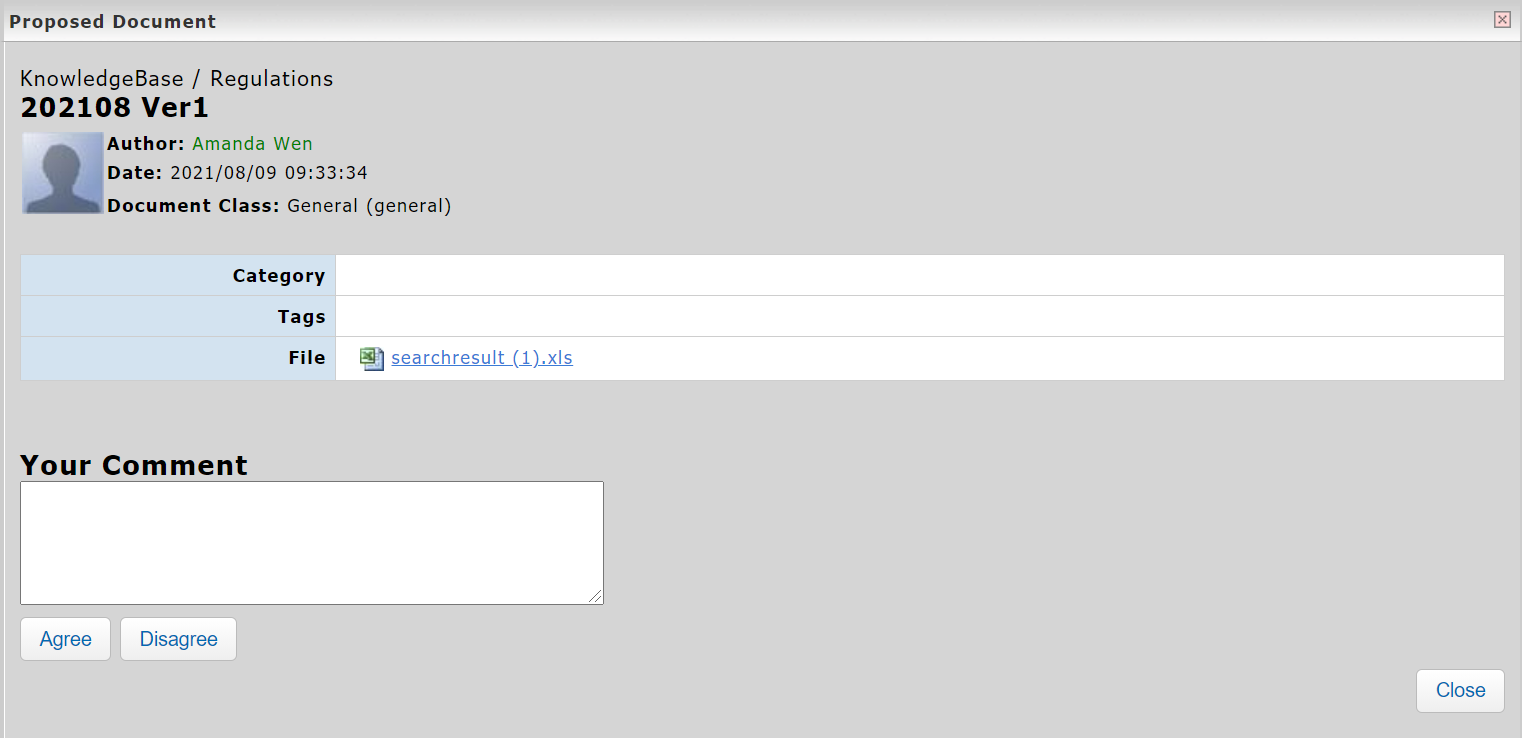
*The system will send reminder emails of the auditing(s). Please make sure the email information is filled in your account.
來源連結:
https://support.vitalyun.com/en/?catid=28&id=5713%3Ahow-do-i-approve-proposed-document-s&view=article
More Content
2024 August
"My Subscription" and "My Subscribed Documents" explained
2024 August