1. After logging into your account, click on the Account Center at the top right of the webpage. 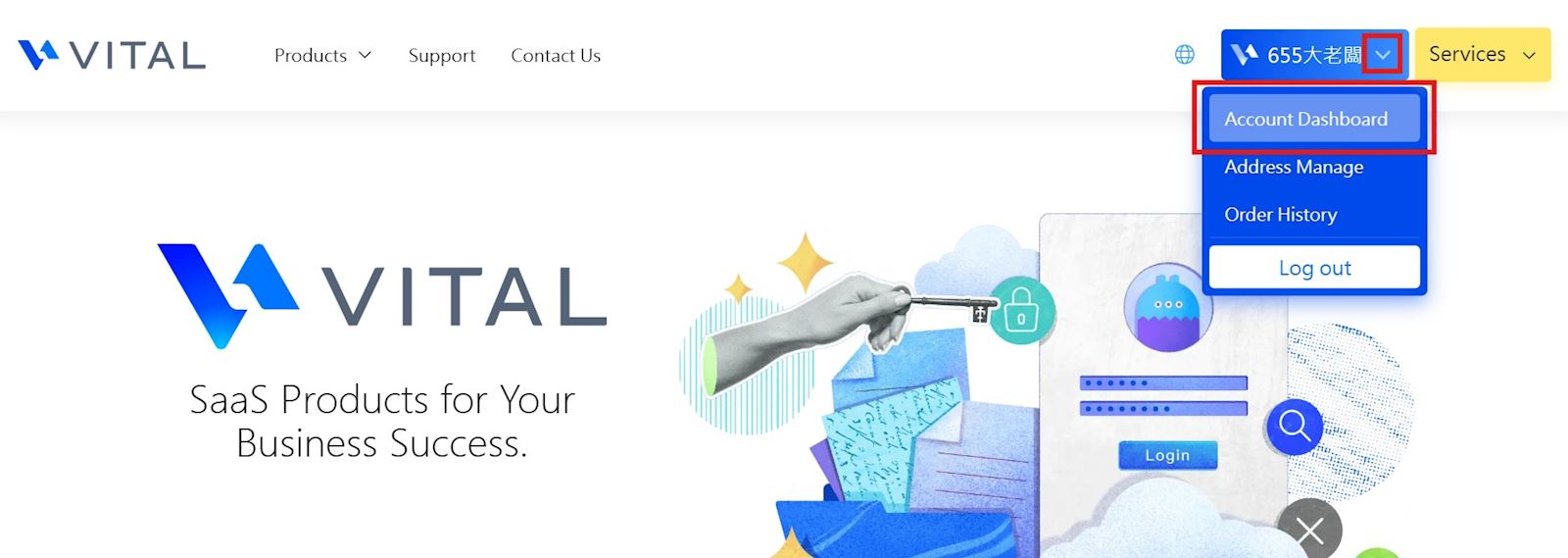
2. Navigate to Security Verification and select Set Up Authentication App. 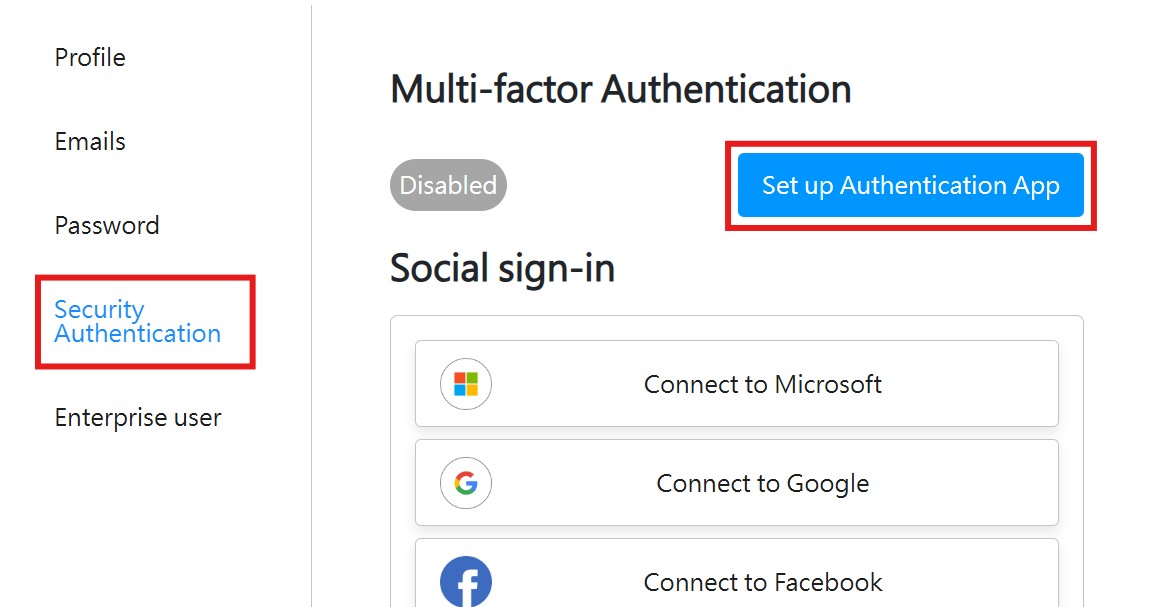
3. Install an authentication app on your mobile device. Once installed, scan the QR Code displayed on the webpage.
4. Enter the 6-digit code shown in the authentication app, then click Verify to enable Multi-Factor Authentication (MFA). 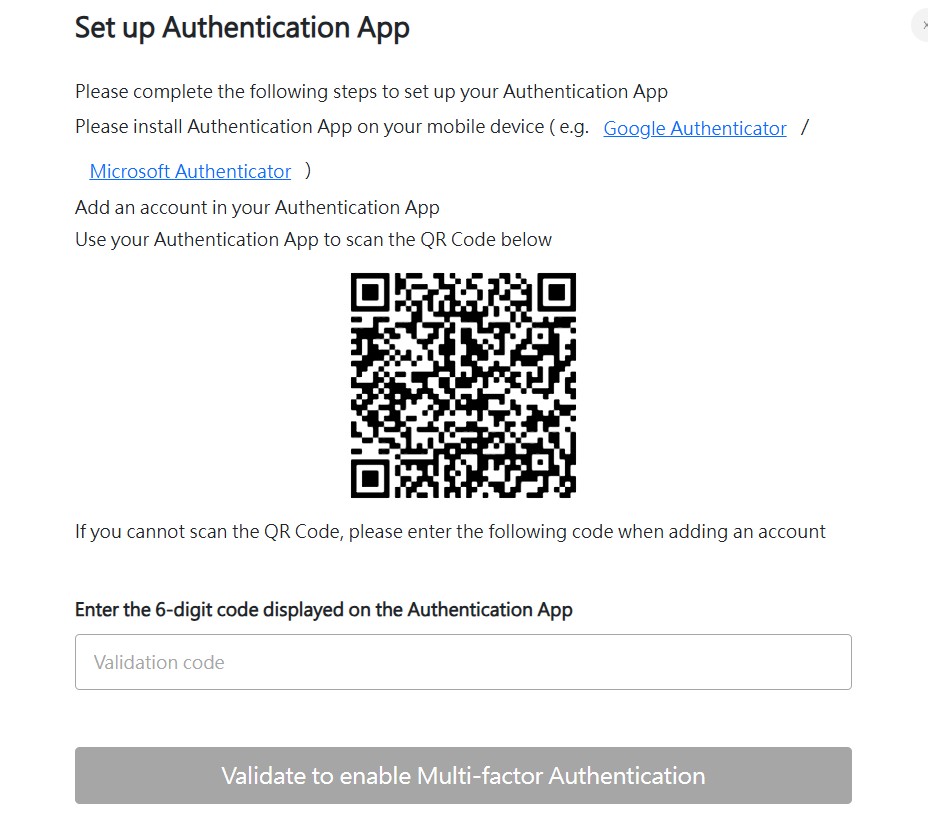
5. If the setup is successful, the status will show as Enabled. 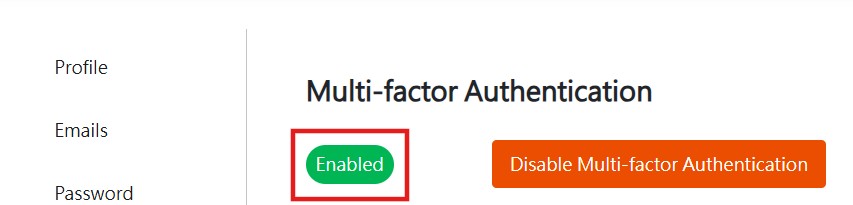
6. The next time you log in, you will need to open the authentication app and enter the verification code displayed in the app. 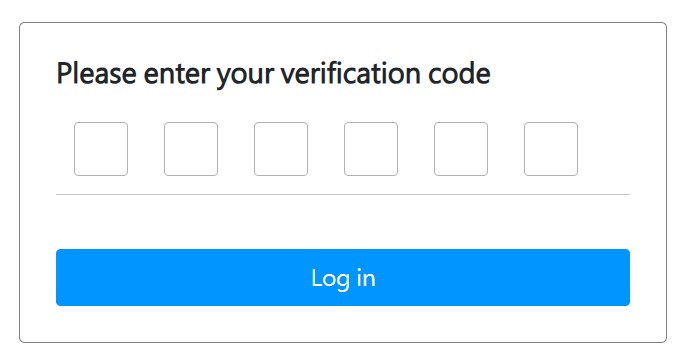
來源連結:
https://vital-faq.azurewebsites.net/CRM/6278
1. After logging into your account, click on the Account Center at the top right of the webpage. 2. Navigate to Security Verification and select Set Up Authentication App. 3. Install an authentication app on your mobile device. Once installed, scan the QR Code displayed on the webpage. 4. Enter the 6-digit code shown in the authentication app, then click Verify to enable Multi-Factor Authentication (MFA). 5. If the setup is successful, the status will show as Enabled. 6. The next time you log in, you will need to open the authentication app and enter the verification code displayed in the app.