目錄
Go to [Settings > System Settings > Numbering]. You can choose on the left tab which field you would like to have auto-numbering. Tick [Activate ... No.], then tick [... Auto-Numbering] so that you could start setting up numbering format.
*Note: This function is only usable by system administrators.
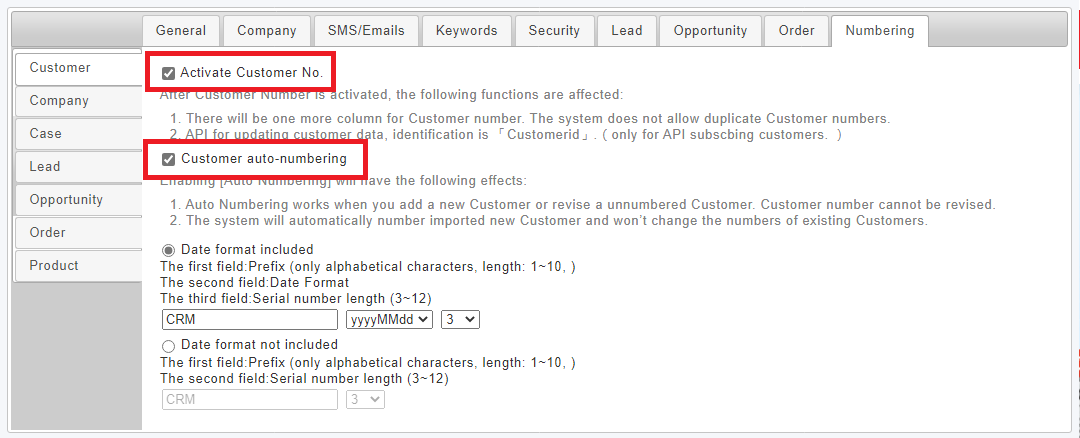
In the [Customer] field for example, after customer numbering is enabled under [Auto-Numbering] in [Settings], each single or multiple increase in customer data will auto create customer numbers. The auto-number takes into account date (optional) and serial number, as shown in the picture below:
*Note: If the user enables auto-numbering, then manual edit of customer numbers will be disabled.
來源連結:
https://support.vitalyun.com/en/vital-crm/faq?catid=28&id=5203%3Ahow-to-set-up-auto-numbering&view=article
More Content
2024 August
How to change the System Representative email account?
2024 August