Note: If you need to change the grade type, please go to [Maintenance] > [Account information] > [Account] to change the settings before importing, or the system will fail to import.
1. Go to [Maintenance] > [Account information] > [Account] and select [Excel Import] on the right.

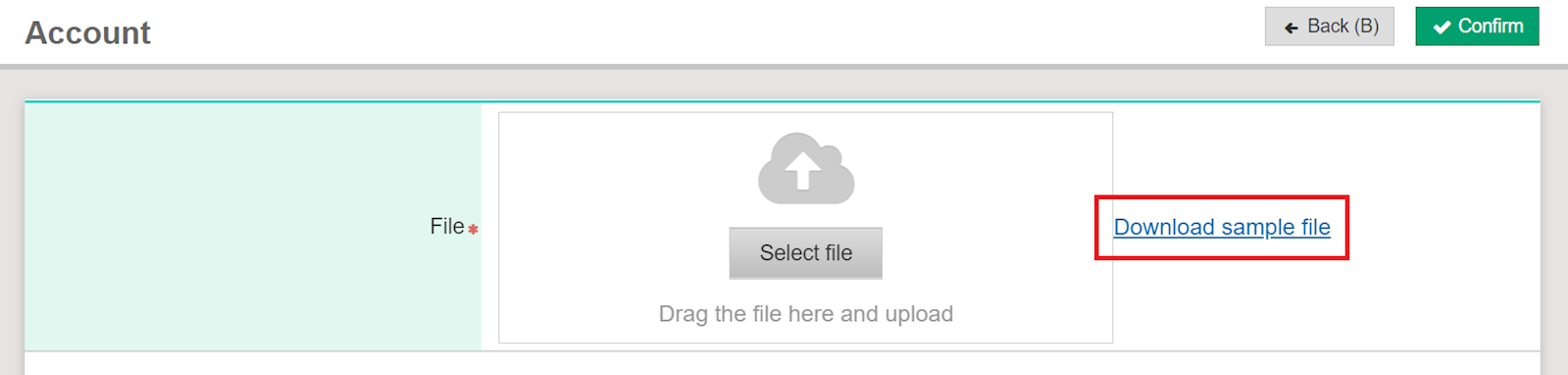
2. Next, please download the sample file.
3. Fill in instructions:
*To avoid import failure, do not delete the heading.
(1) A~E columns: Please enter Code (required field), Account name (required field) in Traditional Chinese, Simplified Chinese, English, and Japanese.

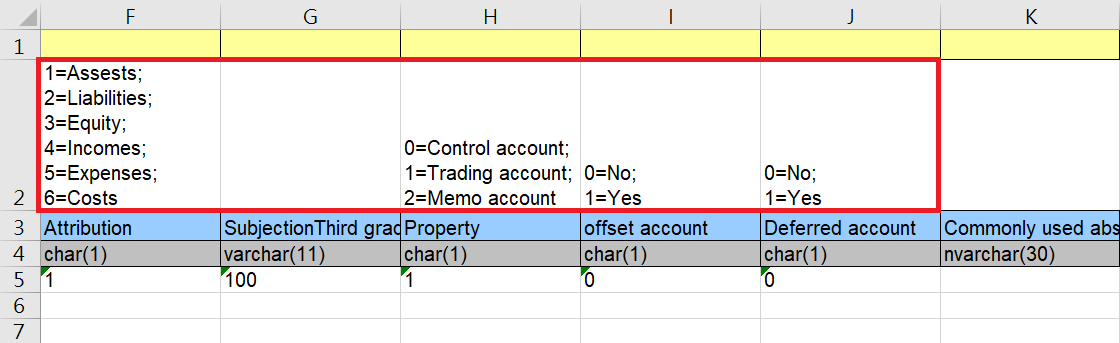
(2) F~J columns: All are required fields. Please pay attention to the instructions in the red box when filling in.
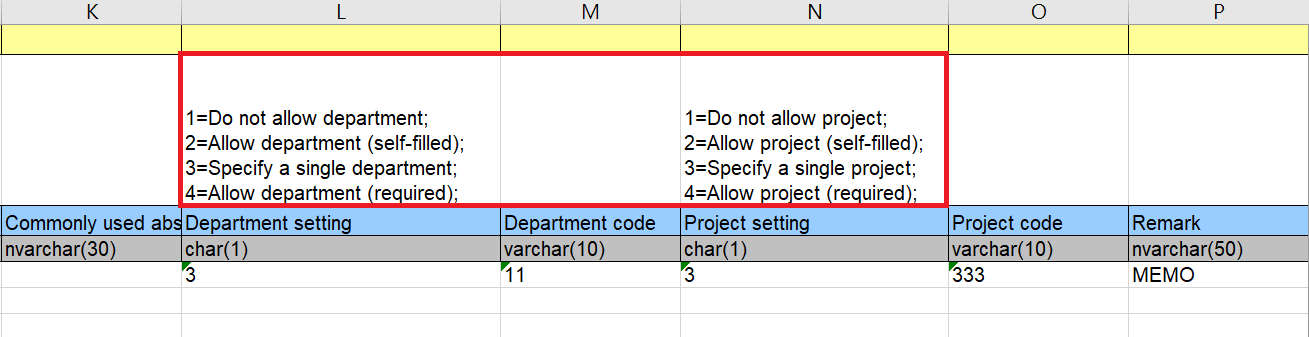
(3) K~P columns: Please pay attention to the instructions in the red box when filling in. The fields may be left blank if there's no need for the settings.
*Commonly used abstracts can be filled under the K column.
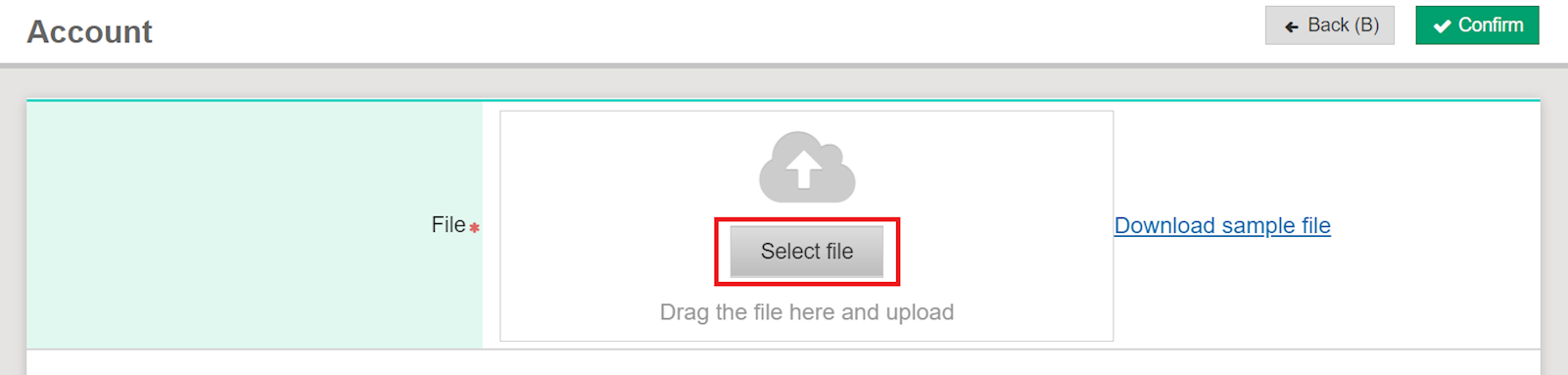
4. Once the file is confirmed, return to the system to upload file.
來源連結: